Get started with CellStore, Part 4: Query CellStore
Estimated reading time: 2 minutesThis page is a placeholder, its contents are being worked on.
Query CellStore
There are several options to test the querying of CellStore.
Step 1: Acquaint yourself with the filtering mechanism
In this section we propose to use either the Admin UI or the Rest API:
Option 1: Query CellStore using the Admin UI
If you have imported the Apple 10Q in previous step, you can now use CellStore Admin UI to query some facts:
- Open the Admin UI at http://localhost:8080/ in the browser.
- Navigate to the
Factscollection. - Click on Filters
- In the field marked with “Add a dimension name you would like to filter” insert
xbrl:conceptand press Enter. - In the filter shelf in the field “Add dimension value” add:
us-gaap:Assetsand press Enter.
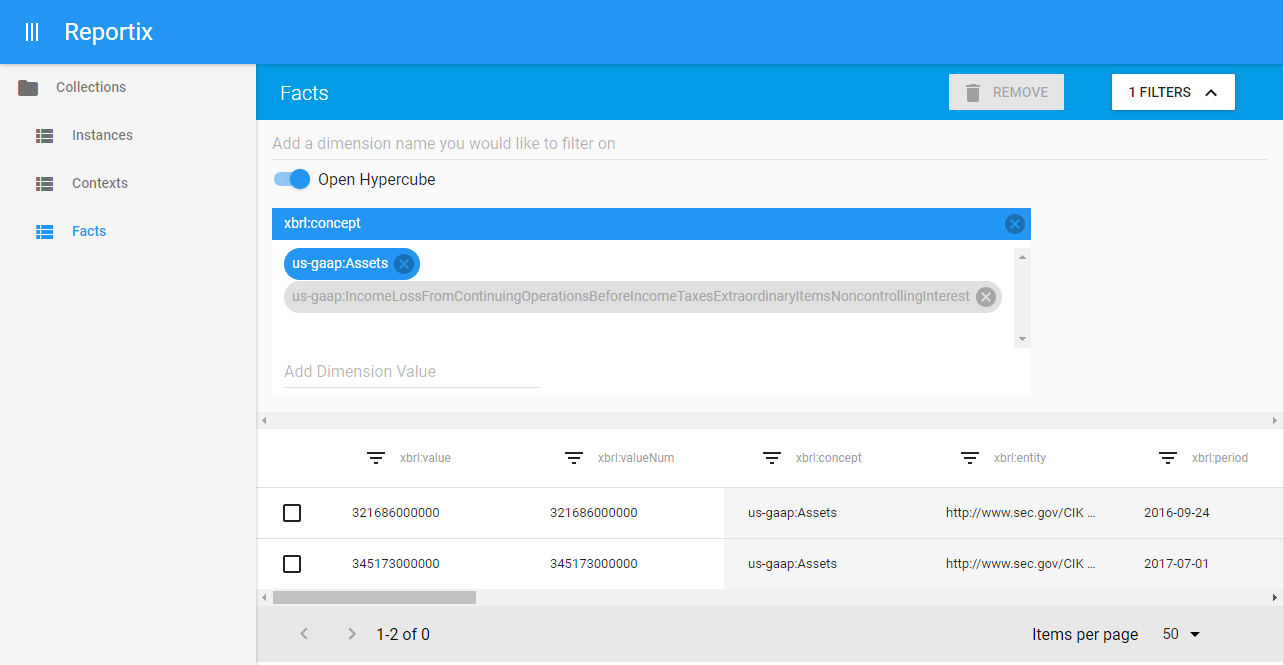
Now you should see only the facts that have dimension/value xbrl:concept=us-gaap:Assets:
Option 2: Query CellStore using the Rest API
For interfacing with the Rest API directly we suggest using tools like:
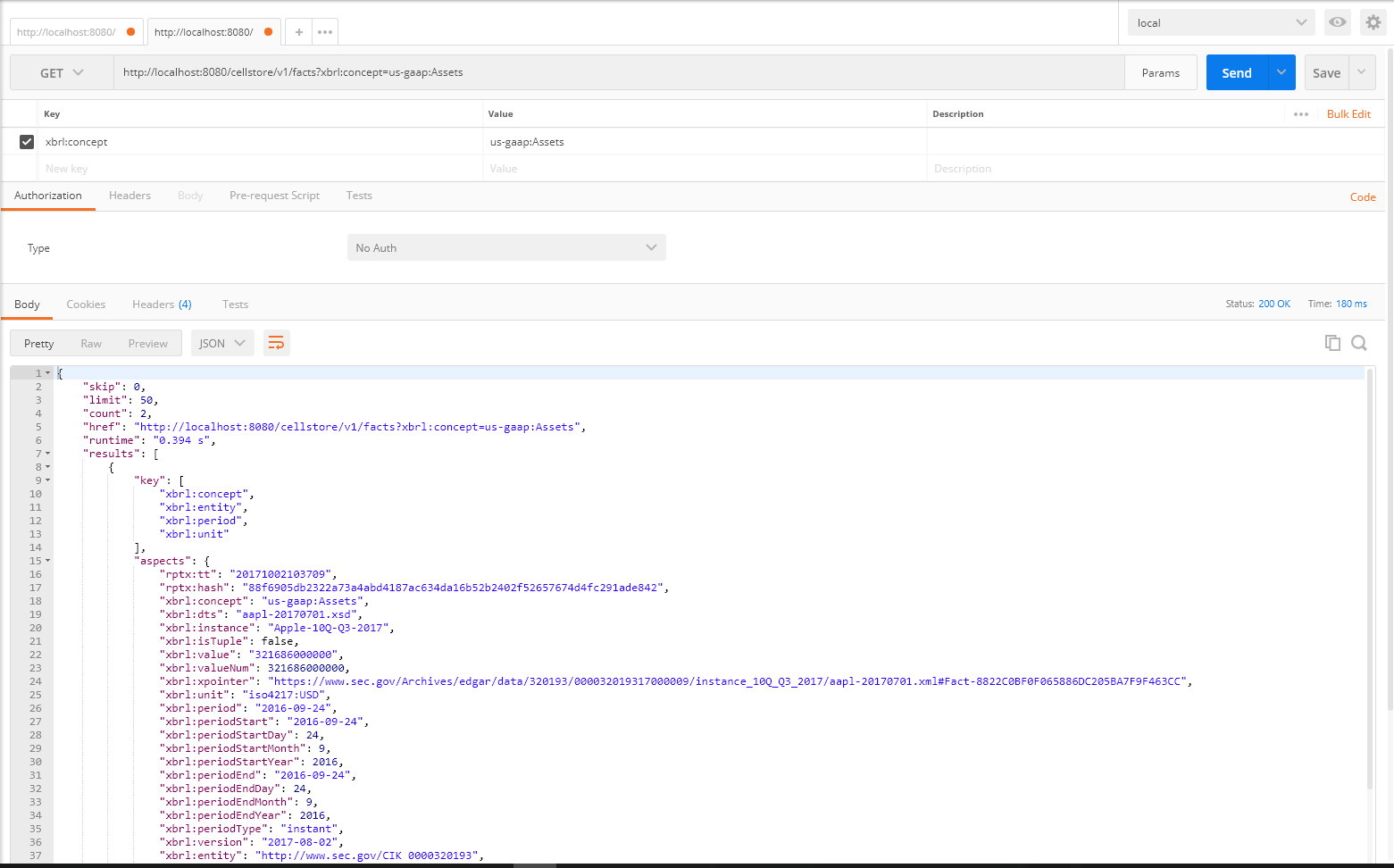
In order to issue the same query request that we ran in Option 1, we choose the following settings:
- Endpoint:
/facts - HTTP method: GET
- Parameters:
xbrl:concept=us-gaap:Assets
The alternative curl command looks like this:
curl http://localhost:8080/cellstore/v1/facts?xbrl:concept=us-gaap:Assets
You can also use your browser for querying: http://localhost:8080/cellstore/v1/facts?xbrl:concept=us-gaap:Assets.
When using the browser for querying we suggest using a pretty printing plugin like JsonView for Chrome.
Try to filter in the same way the /instances or /contexts endpoint.
Common parameters of the Rest API
There are several parameters that you can use on every endpoint:
open(true/false): Issue either an open hypercube or closed hypercube query- Open hypercube: returns all facts matching the filtering dimensions
- Closed hypercube: returns all facts matching the filtering dimensions and the filtered key dimensions (In the Admin UI the key dimensions are highlighted with a gray background).
Each endpoint has some default key dimensions that are automatically filtered. For example, the Facts endpoint is filtered by
xbrl:concept=*&xbrl:entity=*&xbrl:period=*&xbrl:unit=*.
limit(number): Limit the number of returned items (default: 50).skip(number): Offset the results for paging (default: 0).paging(true/false): Adds the fieldslastHref(link to the “last” page) andmaxCount(default: false). Warning: Addingpaging=truecan have a significant performance impact.debug(true/false): Adds debug information, such as the issued hypercube, to the response of each request (default: false).
cellstore, get started, guide, tutorial, queryWould you like to understand the
openparameter?You could try to filter
xbrl:concept=us-gaap:IncomeLossFromContinuingOperationsBeforeIncomeTaxesExtraordinaryItemsNoncontrollingInterestwithopen=trueoropen=false. Also adddebug=trueto inspect the query hypercube used to query CellStore.